How to Resize a PNG Image?
Up to date, PNG (Portable Network Graphics) is among the most widely used digital graphics formats. In this brief feature, we consider the specifics of this format, look into its pros and cons, and show how to resize the PNG image without losing quality.
What is PNG?
Before figuring out how to resize a PNG image, let’s first go through some essentials and compare it with another renowned format and its major alternative – JPEG.
Thus, PNG first appeared in 1995, 4 years after the initial introduction of JPEG. The legend goes so that during one of the conferences dedicated to Usenet – a computer network and web service second in popularity to email – a suggestion was made to create an alternative to the GIF format to go around its license restrictions. PNG was invented as a result, being an abbreviated phrase – “PNG IS NOT A GIF”.
As for the technical aspects of PNG, the format can compress images without affecting their quality using the Deflate algorithm. Today, the format is most commonly used to share and upload images to the web as well as the primary choice for source files that are planned to be processed in the future.
PNG supports three major types of pixel images:
- half-tone images with 16-bit color depth;
- color indexed images with 24-bit color depth;
- full-color images with 48-bit color depth.
And we can’t emphasize enough that the format compresses files without practically any effects to its end quality, as opposed to JPEG and many other formats.
Pros & cons of PNG
There are both certain benefits and drawbacks to the format just as well.
Pros:
- minimum compression effects;
- convenience in storing intermediate image versions;
- supports a huge number of colors (up to 16.7 million);
- supports multi-layer transparency;
- allows working with layers;
- allows enclosing metadata in the file;
- provides relatively small file sizes.
Cons:
- doesn’t support animation;
- not the best fit for processing full-color images;
- cannot contain several images in a single file.
Now you know exactly why PNG is so widely used among both web designers and regular PC users. It is, basically, one of the scarce formats that allow getting images with transparent backgrounds, among other things. This is a very optimal thing for logo creation as well as for drawing page navigation elements, icons, texts, pictures with distinct edges, etc. All in all, this is a handy format for any case where transparency, good compression, details, and clear image boundaries are important.
What is the Difference Between JPEG & PNG?
JPEG (JPG) is a similarly renowned image format that, however, compresses images with certain quality losses and doesn’t support any transparency adjustments. On the other hand, it allows configuring a particular level of quality when it comes to saving the picture. Thus, as you lower it, details are being deleted and noises are being added to the image while its overall size becomes much lighter. As such, JPEG is optimal for pictures with high color intensity (real-life photographs, for instance).
If we take PNG and juxtapose it, it processes each pixel with the help of 3 color channels, which guarantees full-color standardization of an image without any diffusions. The format is superior in terms of color displaying quality, however, making end files quite memory-intensive.
Moreover, as opposed to JPEG, PNG, again, features different levels of adjustable transparency. Last but not least, due to the nuances of the basic algorithm, PNG can do a really good job at compressing images with horizontal lines.
When you need to pick one from the pair, you should base your decision on the initial characteristics of your image. In particular, if it contains any primitive lines, see in which direction they are allocated – if horizontally, then PNG will be your best bet and vice versa.
PNG IS NOT A GIF also shows great results at formatting blueprints and text files, providing quite moderate file sizes with distinct visuals.
How to Resize PNG File?
Now, let’s find out how to resize a PNG image with the help of the most used photo editor out there – Photoshop.
Step #1
Open your image in Photoshop – for that, you can simply use the combination Alt+Ctrl+I.
Step #2
Click the “Image” tab in the upper tool panel and select the “Image Size” tool.
Step #3
Click the drop-down menu called “Dimensions” and look through default scaling options that won’t affect the end quality of the image. You can either use the optimal parameters or specify your own, but not all combinations result well.
Step #4
Specify the end quality of the image – “Good” is mostly recommended as the most balanced option.
Step #5
Finish it all up by enabling the “Smart Sharpen” feature.
Voila! Five simple steps after, you get a newly resized PNG image without sacrificing quality.
Can I Resize My PNGs for Free?
The simple solution we’ve highlighted above is an automated process available only in the newer versions of Photoshop. You can resize PNG files absolutely for free, however, and without the need to install any voluminous software to your PC, not to mention that Photoshop is pretty complicated and needs to be figured out to use.
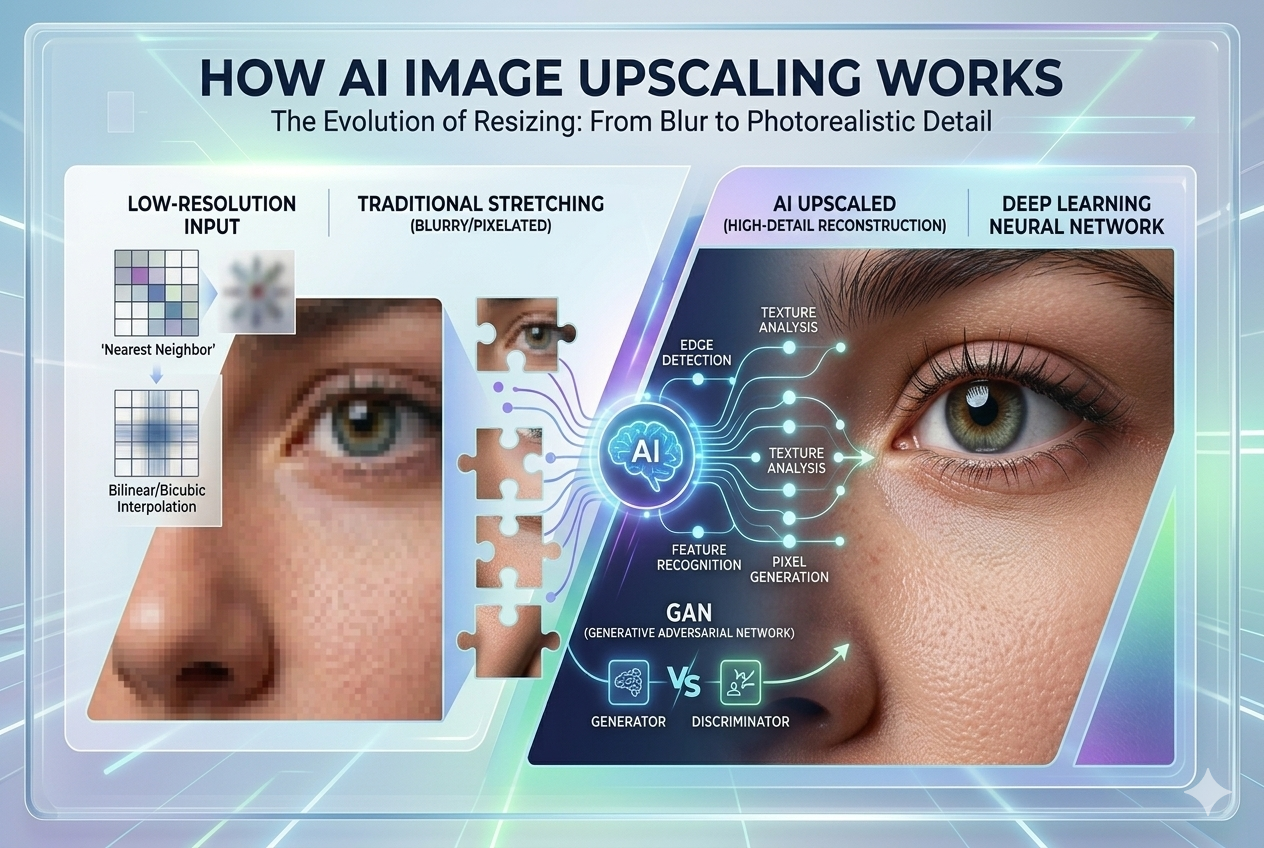
A fruitful alternative is Techabyte – a deep learning-based, smart online image scaler that can resize PNG images with up to 4x scaling without quality losses. All free of charge. The progressive machine learning mechanisms of the Generative Adversarial Network can autonomously restore missing image elements, saving all the initial quality parameters (sharpness, contrast, transitions, etc.) and making everything even sharper and better.
You can resize PNG online in a couple of minutes right now via Techabyte – try it out!